



📌 At a Glance: Krita AI Plugin and Architecture
| Basic Engine | ComfyUI Backend Integration |
|---|---|
| User Interface | Krita Native Dock Panels (Generative AI) |
| Important Mods | Generate (Metinden Görsele), Inpaint/Outpaint, Live Painting |
| ControlNet | OpenPose, Scribble, LineArt, Canny, Depth Desteği |
| Security &Security | 100% Local Server or External API Connection |
| Cost | Free and Open Source Plugin |
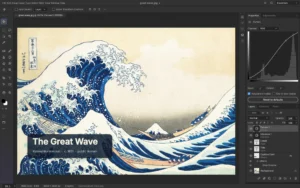
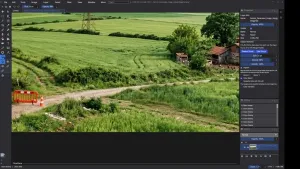
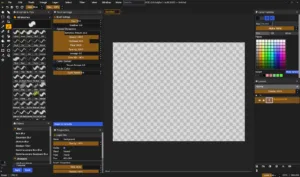
The Krita AI Diffusion plugin turns the open source digital painting software Krita into one of the world’s most capable AI design stations.This video guide examines basic settings, engine selection and workflow optimizations.
Introduction: Natural Harmony of Krita and Generative Models
The biggest shortcoming of web-based interfaces is that they lack the brush engine, layer masking and selection precision that digital artists need.The Krita Generative AI plugin developed by Acly fills this gap, integrating the power of ComfyUI directly into the Krita canvas [1].
1. Basic Setup and Server Configuration
There are two basic alternatives to run the plugin:
- Managed Local Server: The plugin can automatically download and configure the required ComfyUI environment and base models with one click.
- Pre-Installed ComfyUI Connection: Users who already have ComfyUI installed on their computer can directly share their existing model libraries by connecting the plug-in to the local port (port 8188) [2].
2. Artist Will with Control Layers (ControlNet)
To prevent the AI from producing random results, sketches drawn with Krita’s brushes can be assigned as a ControlNet (Scribble or LineArt) layer.Thus, the outlines of the composition remain completely under the control of the illustrator.
Independent Sources and References
[1] GitHub Repository: Krita Generative AI Diffusion Project by Acly
[2] ComfyUI Community: ComfyUI Powerful and Modular Stable Diffusion GUI