


📌 At a Glance: Krita AI Object Adding and Masking
| APPLICATION | Krita 5.2+ & Generative AI Plugin |
|---|---|
| Technical Method | Selection Based Inpainting &Object Integration |
| Light and Color Harmony | Adaptation to the Environment with Denoiser Ratio (0.35 – 0.65) |
| Supported Models | Stable Diffusion 1.5, SDXL, Inpainting Checkpoints |
| Additional Layer Advantage | Hybrid Intervention with Krita’s Native Layer and Brush Engine |
| Cost | Completely Free and Can Run on Local Hardware |
Adding new elements to an existing visual composition requires hours of perspective and shadow calculations in traditional drawing.With the Krita AI plugin, you can place photorealistic or illustrative objects in seconds by masking the desired area.
Introduction: The Inpainting Revolution in Visual Manipulation
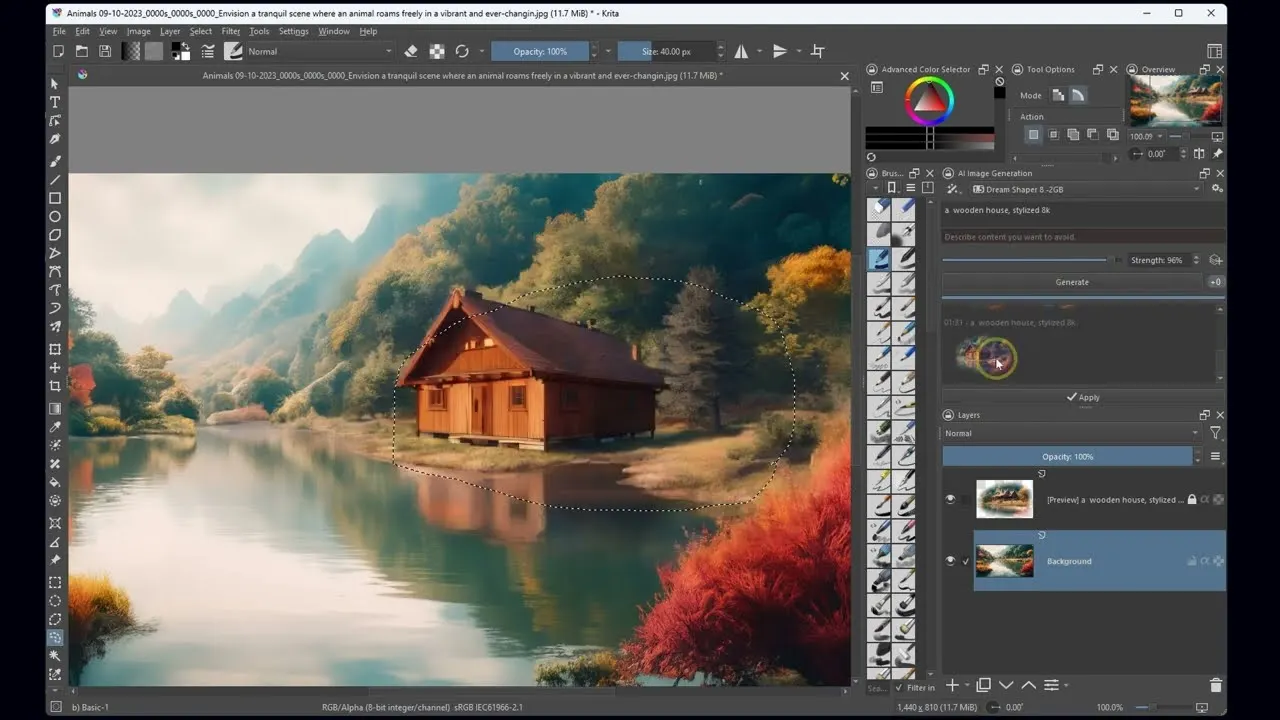
When making changes to a photo or digital illustration, it is much more practical to focus on the existing scene rather than starting from scratch.Krita’s open source artificial intelligence plugin allows artists to select any area of the canvas and add new elements that blend seamlessly with the environment [1].
1. Adding Objects Step by Step Workflow
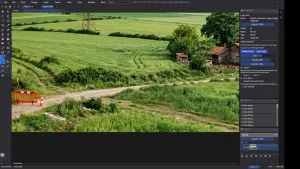
- Making a Selection: Using Krita’s lasso or ellipse selection tool, determine the area where the new object will be located.
- Rough Sketch or Color Tip (Optional): If you want to determine the direction and color of the object you want to add, apply a rough smudge with a simple brush.
- Prompt Definition: Write a focused command in the plugin panel that defines only the object to be added (for example:
vintage wooden bench on the grass, morning sunlight, ultra realistic). - Denoising Power Setting: If you want an object to appear from scratch, keep the denoise value between
0.60 - 0.75;To enrich an existing drawing, a level of0.40 - 0.50is ideal [2].
2. Anti-Aliasing and Perfecting Light Matching
Once the generated layer is placed as a separate layer in Krita, its borders can be seamlessly integrated with the main image using Krita’s soft eraser or “Soft Light” / “Overlay” blending modes.
Independent Sources and References
[1] Krita Generative AI Documentation: Acly Krita AI Diffusion Plugin GitHub Wiki & Features
[2] Computer Graphics World: Inpainting and Latent Diffusion Workflows in Modern Digital Art