




At a Glance: 100 Photoshop Tricks & RENK Mapping Table
| Scope | 100 essential editing, selection, retouching, layer, and automation techniques |
|---|---|
| Target Software | RENK Image Studio (v0.1.0-alpha, .NET 10 + Avalonia + Skia) |
| 100-Trick Breakdown | 68 Available · 11 Partial / Workaround · 21 Planned (Total 100) |
| Featured Modules | BlendIfOps, WaveletOps, Lut3D, SeamCarving, PuppetWarp, MagneticLasso, PerspectiveCrop, CommandSearchIndex (Ctrl+K) |
| Access | Run in Browser (WASM) · Windows .exe · Linux AppImage (100% local) |
This guide walks through every core desktop image-editing technique from 1 to 100—mapping the ones already implemented in the RENK codebase to their real modules and shortcuts, while honestly marking what is still on the roadmap as Planned.
Sit down in front of an image editor packed with hundreds of tools and shortcuts, and you start taking notes within the first ten minutes. By the thirtieth trick, the shortcuts blur together; by the hundredth, only one question remains in your head: “How do I pull this off in my own editor?”
The real challenge is not memorizing 100 separate buttons. It is recognizing the pixel, mask, or blending logic behind every number.
First Twist: How Many of These 100 Tricks Are Ready in RENK Today?
When we map RENK’s current .NET 10 + Avalonia + Skia codebase (following the CR-200 and CR-210 waves) one by one against these 100 items, the picture is clear: with 66 tools (ToolKind), 28 blend modes (BlendMode), BlendIfOps, WaveletOps, Lut3D, PuppetWarp, PerspectiveCrop, MagneticLasso, AtnPlayer, and Ctrl+K command search, 79 techniques can already be executed directly or via a practical workaround today—while 21 techniques sit on the roadmap as Planned [1], [2], [3].
Section 1: Canvas Navigation, View Controls, and Workspace
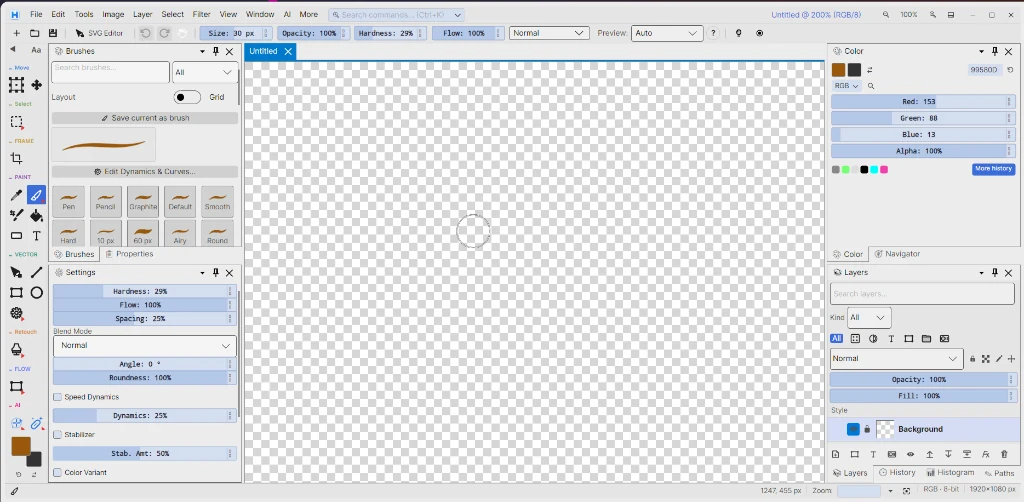
Hunting for scrollbars with a mouse kills your momentum on a high-resolution canvas. Thanks to RENK’s 256×256-pixel sparse-tile (TiledLayer) architecture and single-key CanvasControl shortcuts (T Move, M Select, L Lasso, W MagicWand, C Crop, B Brush, E Eraser, S CloneStamp, G Gradient, I Eyedropper, P Pen, V Text), even 8K canvases stay responsive.
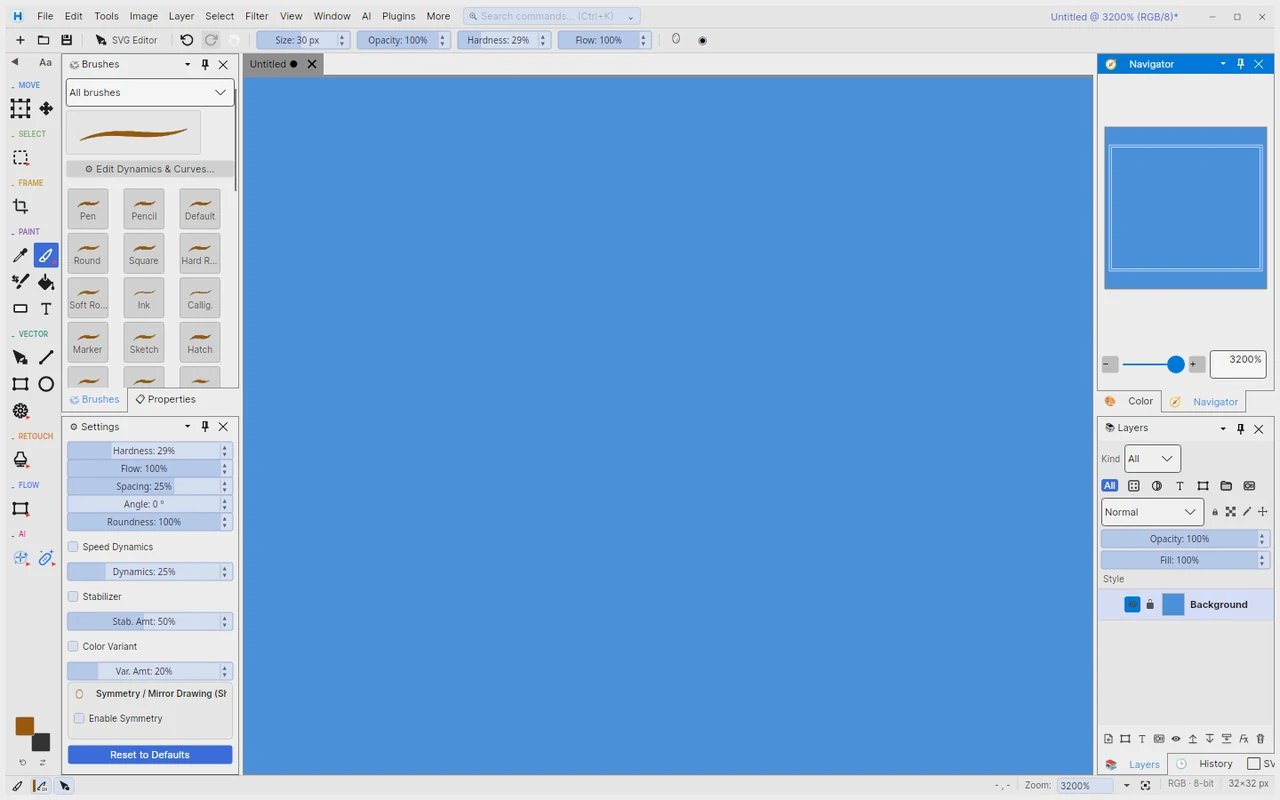
1. Bird’s Eye View — Available in RENK
Photoshop’s trick of holding H and clicking to zoom out to full screen and jump to a target spot is covered in RENK by the right-hand Navigator (NavigatorView) panel along with Ctrl+0 and scroll-wheel zooming. You can shift focus across huge canvases without touching scrollbars.
2. Layer Zoom Shortcut — Planned (Roadmap)
Holding Alt+Click in Photoshop to snap directly to a layer’s bounds is planned in RENK as a layer-panel double-click and focus enhancement. For now, Navigator and Ctrl+± handle rapid zooming.
5. Rotate Your View — Available in RENK
MainViewModel includes the RotateView command, rotating only the viewport matrix without resampling or degrading pixels—ideal for ergonomic drawing angles with a tablet and stylus.
12. Multiple Views of the Same Document — Planned (Roadmap)
Opening the same document in two synchronized windows (one at 100% detail, the other showing the full framing) is planned. Currently, the Navigator preview lets you monitor overall composition on a single canvas.
18. Fit to Canvas — Available in RENK
Fitting oversized images after moving or importing into the canvas frame is handled directly via FitToScreen (Ctrl+0) in CanvasControl and the Ctrl+T Free Transform bounding box.
45. Flip Your View (Non-Destructive) — Available in RENK
Using DocumentTransforms (FlipHorizontal / FlipVertical), you can flip the canvas horizontally or vertically to spot anatomy and symmetry mistakes immediately.
63. Speed Up Slow Shortcuts — Partial / Workaround
Tool switching in RENK works instantaneously with single keys via CanvasControl (B, E, M, L, W, C, I, S, P, T, V), while a custom key-delay and shortcut-remapping editor is planned.
64. Feature & Command Search Palette (Find Feature) — Available in RENK
The Ctrl+K Command Search (CommandSearchIndex) in the title bar scans the live menu tree and SVG panel actions in real time, letting you trigger any forgotten filter or command without digging through menus.
65. Sticky (Spring-Loaded) Shortcuts — Available in RENK
Powered by the HoldKeyTools architecture, holding a key temporarily switches to that tool and snaps back to your previous tool as soon as you release it.
76. Flick Panning — Available in RENK
FlickPanning is built into CanvasControl and MainViewModel: push the canvas with a mouse or stylus and release, and it glides smoothly with inertia.
82. See Way More Recent Files — Available in RENK
RecentFilesService and RecentFileCache track recently opened projects with caching and thumbnail previews.
89. Show Layer Bounds — Available in RENK
Whenever a layer or vector object is active in Move (T) or Ctrl+T mode, its bounding box and transform handles are drawn live on the canvas.
93. Overscroll Beyond Canvas Edges — Available in RENK
The Overscroll option in CanvasControl and MainViewModel lets you pull the corners of an image into the center of the screen for comfortable edge retouching.
Section 2: Selection, Masking, and Edge Cleanup
The biggest time-savers in the workflow revolve around softening selection edges, stacking group masks, and blending layers strictly by luminance. In RENK, MagneticLasso (CR-200), MobileSamRunner (SmartSelect / VisionSelect), and the BlendIfOps compositing core all run locally in memory.
3. Start Hidden with a Negative Mask — Available in RENK
Filling a layer mask with black (Hide All) and painting back only the desired areas with a white brush works directly on the Renk.Composite mask channel.
6. Knockout Technique — Available in RENK
CompositeOps and the KRA style model support Knockout, allowing an upper layer to punch through lower layer groups non-destructively.
27. Double Masking with Layer Groups — Available in RENK
Because group layers (LayerType.Group) in RENK carry their own mask, you can apply a second mask at the group level without touching the inner layer mask.
28. Remove Edge Halos with Smudge — Available in RENK
The SmudgeBrush tool softens bright halos along transparency-locked layers or mask edges by blending them with neighboring pixel colors.
34. Make Smooth, Crisp Mask Edges — Available in RENK
Applying blur plus contrast/curves (Feather / Adjustment) directly to a mask turns jagged selection edges razor-sharp.
35. Fix Masks with Density — Partial / Workaround
Brush and transition softness (Density / Feather) parameters are available; a dedicated non-destructive Mask Properties panel with a live Mask Density slider is planned.
38. Remove Mask Halos and Fringing — Available in RENK
Inward mask contraction/feathering (Feather + edge erosion) paired with color blending cleans up white or background fringes left after cutouts.
39. Use an Image or Channel as a Mask — Available in RENK
You can paste a layer’s luminance data or a copied pixel channel into a mask channel to turn complex textures (smoke, glass, hair) into precise masks.
42. Fix Hair Edge Halos — Partial / Workaround
Painting neighboring hair tones over fringes in Color blend mode alongside Smudge works in RENK today; an automatic Decontaminate Colors checkbox is planned.
50. Switch Between Freehand Lasso and Polygonal Selection — Available in RENK
HoldKeyTools together with MagneticLasso / PolygonSelect (L) lets you switch seamlessly between freehand lasso strokes and straight polygonal segments.
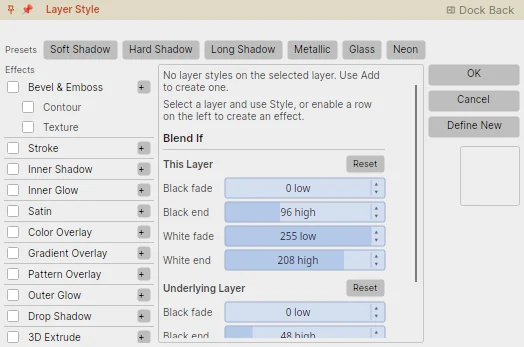
51. Blend If (Luminance-Based Masking) — Available in RENK
Thanks to BlendIfOps (Renk.Composite) and PSD PsdBlendIfRanges compatibility, you can drag the black/white tonality sliders of the current or underlying layer to blend without drawing a mask.
96. Mask All Objects Automatically — Partial / Workaround
MobileSamRunner (SmartSelect / VisionSelect) detects and selects an object’s boundary in a single click; a batch mode that splits every object in a scene into separate mask layers at once is planned.
Section 3: Color Grading, Curves, and Toning
Renk.Protocol.Adjustment layers operate via 256-entry lookup tables (LUTs) without permanently crushing pixel data; Lut3D (.cube 3D LUTs), ColorAdjustGraphite, ColorTransferOps, and DngPipeline white balance let you build contrast and mood without breaking color integrity.
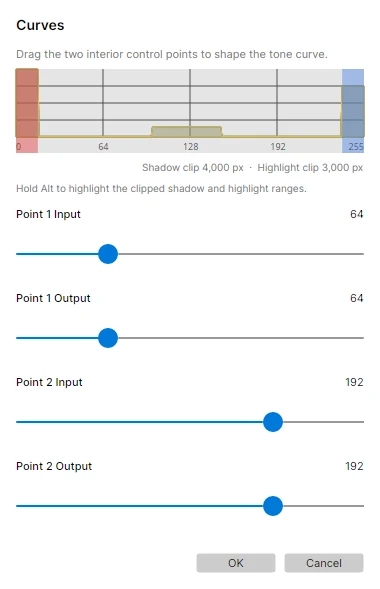
7. Secret Curves Sliders & Clipping Preview — Available in RENK
The 256-entry LUT-based Curves adjustment layer (Renk.Protocol.Adjustment) includes live clipping preview (curves-clipping-preview), revealing crushed blacks and blown highlights while you shape contrast.
10. Fix Extreme Color Casts — Available in RENK
Using ColorAdjustGraphite, HistogramPlotControl, and the Difference blend mode, you can locate the neutral gray point and neutralize heavy color casts.
14. Unlimited Color Grading Presets (LUTs) — Available in RENK
Lut3D (ColorLookupDialog) imports industry-standard .cube 3D LUT files so you can apply unlimited cinematic color profiles in one click.
19. Protect Skin Tones While Boosting Saturation — Partial / Workaround
Saturation is controlled through HueSaturation (Adjustment) and layer blend modes; a one-click Vibrance algorithm that protects skin tones automatically is planned.
23. Precise White Balance Adjustment — Available in RENK
The DNG/RAW pipeline (DngColor, DngPipeline) and color controls provide Kelvin and Tint-based white balance calculations.
25. Detect Main Colors in a Photo — Partial / Workaround
The QuantizeOps and TracePalette engines extract the dominant color palette from an image; a one-click shortcut that pushes those swatches straight into the Palette panel is planned.
26. Fix Skin Tones Easy with Numeric Values — Available in RENK
Combining the Eyedropper (I), Color / Histogram readouts, and Curves / ColorAdjustGraphite balances excessive red or yellow shifts in skin tones.
33. Add Contrast Without Crushing Shadows — Available in RENK
Combining Curves with BlendIfOps boosts midtone contrast while protecting shadow and highlight endpoints.
41. Edit Camera Raw Inside a Smart Object — Planned (Roadmap)
The SmartObjectRenderer and DngPipeline foundations are already in place, but an interactive, masked, non-destructive RAW studio akin to Adobe Camera Raw is planned.
43. Add a Custom Vignette — Available in RENK
BorderOps, FilterOps, and LensDistortion let you apply lens vignettes or custom soft edge darkening.
44. Auto Color and Tone Correction — Available in RENK
AutoAdjustOps (Renk.Filter) delivers auto-tone, auto-contrast, and auto-color balancing algorithms in a single command.
48. Quick Color Change Shortcut — Available in RENK
The Recolor tool (R — Renk.Recolor.RecolorOps) repaints an object’s hue with a single brush stroke while preserving underlying texture and shadows.
54. Prevent Color Shifts with Luminosity Mode — Available in RENK
Among RENK’s 28 blend modes, Luminosity is fully supported, preventing hue shifts when sharpening or applying curve adjustments.
58. Steal Color Palettes From Other Photos — Available in RENK
ColorTransferOps (Renk.Filter) transfers the color statistics and atmosphere of a reference image directly onto your target photo.
68. Complex Multi-Step Presets — Partial / Workaround
34 brush presets, LayerStylePreset collections, and the .atn player (AtnPlayer) are available today; a user-defined preset manager bundling multiple filters and adjustments is planned.
73. Color Grading with the Eyedropper — Available in RENK
Sample shadow, midtone, and highlight targets with the Eyedropper (I) and feed them straight into a GradientMap or PhotoFilter layer.
74. Warming & Cooling Photo Filter — Available in RENK
AdjustmentKind.PhotoFilter (AdjustmentOps, compatible with PSD PsdAdjustmentEncoder) is built in with density and preserve-luminosity options.
81. Fast Color Picker Shortcut — Available in RENK
Foreground/background color swapping and the ColorView spectrum/hex picker open in one click for rapid sampling while painting.
86. RAW Presets and Regional Masks — Planned (Roadmap)
Although the DNG reading pipeline (Renk.IO.Formats.Dng) exists, a multi-mask RAW preset system is planned on the roadmap.
87. Rich Skin Tone Formula — Available in RENK
Combining Curves, HueSaturation, and BlendIfOps / SoftLight reproduces the rich skin-tone balance non-destructively.
90. Fix 8-Bit Color Banding — Available in RENK
NoisePatternOps and subtle film-grain/dithering passes break up 8-bit banding across skies and smooth gradients.
97. AI-Powered Adaptive Presets — Planned (Roadmap)
The groundwork in Renk.AI and MobileSam is already laid; Adaptive Presets that recognize scenes and adjust automatically for portraits or skies are planned.
Section 4: Retouching, Healing, Liquify, and Perspective
The portrait cleanup and photo-restoration methods highlighted in classic workflows live as dedicated modules in RENK: WaveletOps splits an image into high-frequency (skin texture) and low-frequency (light/tone) layers; SeamCarving (Shift+Alt+C) resizes subjects without stretching them; and PuppetWarp bends limbs using a pinned Delaunay triangle mesh.
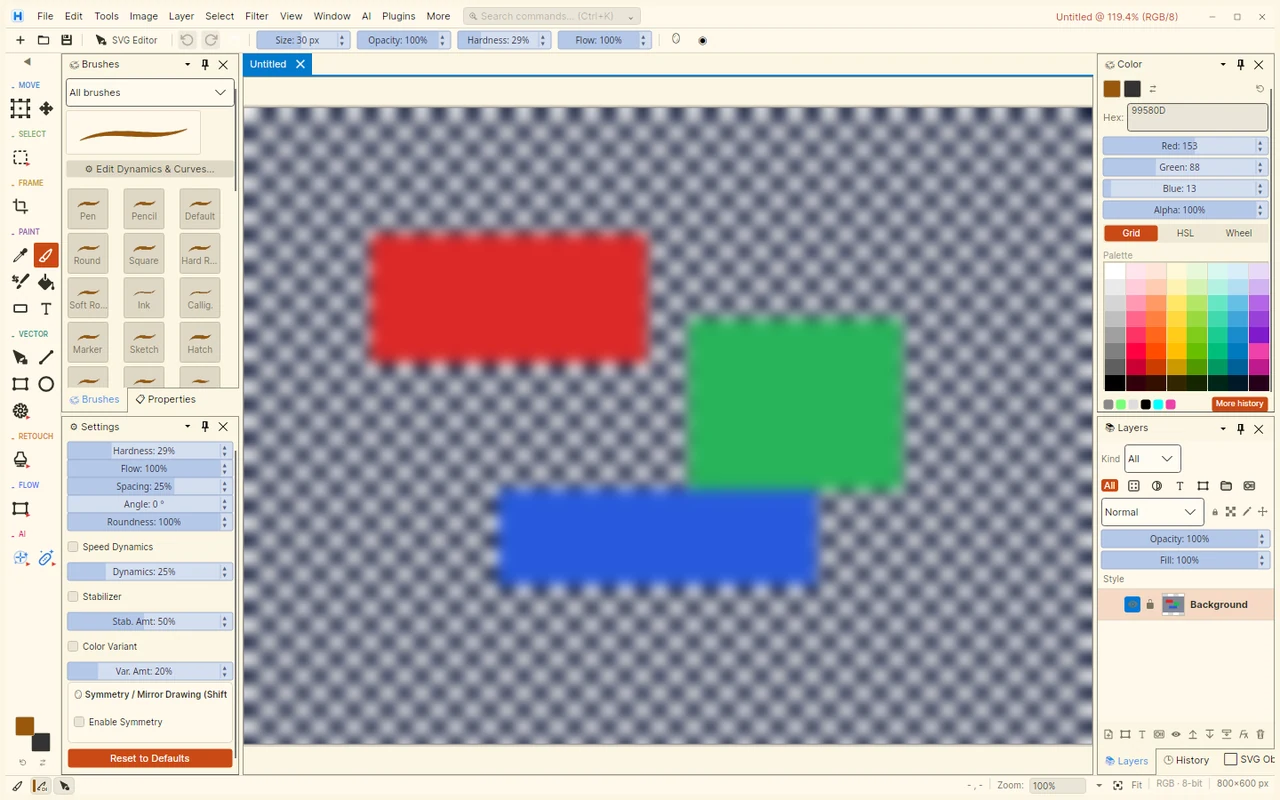
8. Layer Locks for Retouching — Available in RENK
Transparency, pixel, and position locks (LayerLock) in the Layers panel keep you from accidentally altering the background during retouching.
11. Faster Patch & Spot Healing — Available in RENK
SpotRemoval, SmartPatch, and PatchMatchOps (Renk.Vision) rapidly sample surrounding texture to fill selected blemishes.
16. Change and Fix Perspective — Available in RENK
Architectural or screen perspective is corrected directly with Ctrl+T Free Transform, TransformTool, and PerspectiveCropOps.
20. Face-Aware Liquify — Planned (Roadmap)
The general Liquify tool (Engine.cs, CanvasControl) is available, while the Face-Aware module that automatically detects facial landmarks with eye/nose/jaw sliders is planned.
21. On-Screen Face Tool — Planned (Roadmap)
Clicking and dragging directly on facial features to adjust proportions is planned alongside the Face-Aware Liquify package.
30. Perspective Crop Tool — Available in RENK
ToolKind.PerspectiveCrop (PerspectiveCropOps — completed in CR-210 with width/height and DPI settings) rectifies skewed quadrilaterals into clean rectangles in one pass.
40. Blemish-Scan Helper Layer — Available in RENK
A high-contrast black-and-white + Curves helper group exaggerates skin blemishes so you can clean them accurately on the layer below with SpotRemoval.
46. Soft Focus (Orton) Effect — Partial / Workaround
Duplicating a layer, adding GaussianBlur, and blending with Screen or SoftLight builds the Orton effect manually in seconds; a one-click Soft Focus filter is planned.
47. Rotate Clone Stamp — Planned (Roadmap)
The CloneStamp (S) tool is available, while rotating the sampled stamp angle with a live brush preview is planned.
49. Find Sensor Dust and Scratches — Available in RENK
InpaintOps dust/scratch removal paired with Find Edges or high-pass inspection makes sensor spots quick to locate and clean.
53. Fix Photo Geometry and Lens Distortion — Available in RENK
ToolKind.LensCorrection (LensDistortion, DngLensCorrection — added in CR-200 E6c) corrects barrel and pincushion optical distortion.
71. Precise Sky Replacement — Partial / Workaround
Sky-isolation primitives exist inside BlendIfOps and FilterOps/ProceduralTextures; an automated horizon-matching one-click Sky Replacement dialog is planned.
83. Reconstruct with Liquify — Partial / Workaround
Core Liquify deformation and HistoryManager undo support are present; a localized Reconstruct Brush inside the Liquify workspace is planned.
98. Sharpen Skin Texture — Available in RENK
WaveletOps (Frequency Separation) combined with high-pass and surface smoothing brings out natural skin texture without an artificial look.
99. Move Limbs and Objects with Puppet Warp — Available in RENK
ToolKind.PuppetWarp (PuppetWarpTool, MeshDelaunay, MeshWarpKernel) places pins on an image and warps it naturally across a Delaunay triangle mesh.
Section 5: Layers, Styles, Blending, and Effects
Graphic design and speed techniques converge in RENK’s Renk.Fx and Renk.Blend engines: 28 blend modes, GlobalLight angle synchronization, FadeOperation (Ctrl+Shift+F) for softening the last action, and bidirectional layer-style interchange with Krita .kra (layerstyles.asl) and .psd files are all supported.
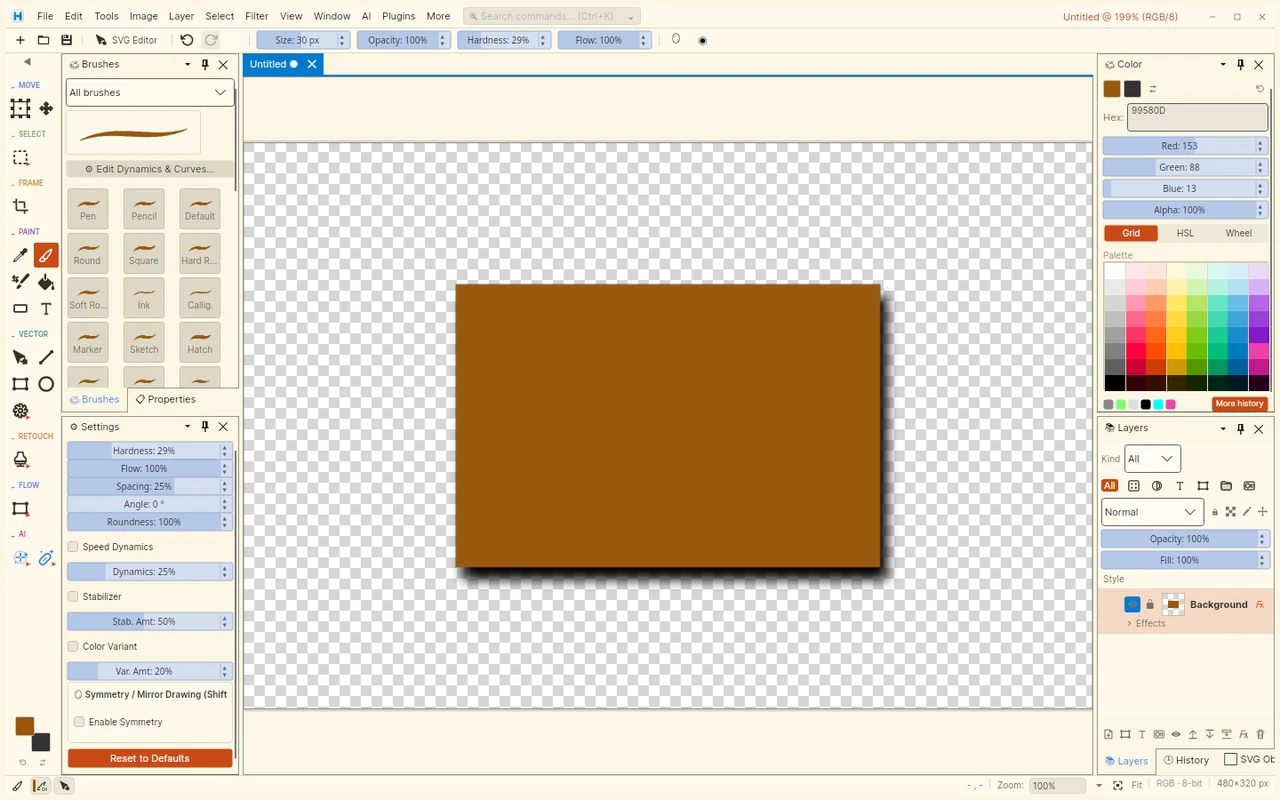
4. Fade Command (Ctrl+Shift+F) — Available in RENK
FadeOperation (Ctrl+Shift+F) blends the last applied filter or brush stroke backward using opacity and blend mode controls without undoing it.
13. Transform Reference Point Shortcut — Available in RENK
Rotation and scaling pivot (reference) points are supported in Renk.Engine and the PSD DocumentConverter.
17. Smart Object Conversion — Available in RENK
SmartObjectRenderer (Renk.Composite) and linked placed graphics (PlacedGraphicPlacement) scale layers non-destructively.
24. Live Drop Shadow Positioning on Canvas — Available in RENK
DropShadow inside LayerStyle composites live with distance, angle, spread, and blur parameters.
29. 3D Sharpen Effect via High Pass / Emboss — Available in RENK
EmbossRelief (Renk.Fx) and HighPass paired with Overlay or HardLight blend modes boost edge micro-contrast.
59. Multiple Drop Shadows on One Layer — Planned (Roadmap)
A single DropShadow plus other style channels (OuterGlow, InnerShadow, Stroke) are supported per layer; stacking multiple instances (+) of the same style type is planned.
60. Separate Drop Shadows onto Their Own Layer — Planned (Roadmap)
Converting a layer style into an independent pixel layer (Layer From Style) is planned.
62. Check Brush Blend Mode — Available in RENK
MainViewModel and the top toolbar display the active brush’s blend mode (Normal, Multiply, Screen, etc.) directly.
66. Special 8 Blend Modes (Fill Opacity) — Available in RENK
The Renk.Blend engine supports 28 blend modes, including the special modes in the compositing core that respond differently to Fill versus Opacity.
67. Use S.E.C (Light/Contrast/Color) for Attention — Available in RENK
Slightly darkening and desaturating everything outside the main subject works cleanly via Curves + mask or Exposure/BrightnessContrast layers.
70. Automatic Long Shadow Effect — Planned (Roadmap)
A one-click flat graphic shadow generator extending at 45° for text and icons is planned.
77. Delete Empty Layers in One Click — Planned (Roadmap)
A utility command to batch-remove empty layers containing no pixels or vectors is planned.
84. Link Distant Layers — Available in RENK
Document.cs and Layer.cs support layer linking (LinkLayer), letting you move and transform layers far apart in the hierarchy together.
88. Step and Repeat (Ctrl+Alt+Shift+T) — Available in RENK
MainWindow.axaml binds Ctrl+Shift+T and Ctrl+Alt+Shift+T for repeating transformations.
91. Control Global Light — Available in RENK
GlobalLight angle is supported in CompositeOps and LayerEffect, allowing all shadows and bevels to share one unified light direction.
92. Layer Panel Search and Type Filter — Available in RENK
The Search layers... box and type filters (All, Pixel, Adjustment, Text, Vector, Group) in MainViewModel and the Layers panel filter large documents instantly.
Section 6: Brushes, Patterns, Typography, Export, and Automation
The final section brings together 34 built-in brush presets plus clean-room ABR brush import, 4-mode Symmetry painting, live SVG editing (A/D/C/F), the AtnPlayer .atn action runner, SimpleMathEvaluator dimension-box math, and Renk.Script / Renk.Automation JSON-RPC automation.
9. Slideshow Export — Planned (Roadmap)
RENK currently exports APNG, GIF, and SpriteSheet animations (AnimationExport); a video slideshow builder with transitions across multiple photos is planned.
15. Batch Export All Open Documents — Planned (Roadmap)
A batch job to export every open tab into a chosen folder with one command is planned.
22. History Snapshots and Versions — Partial / Workaround
HistoryManager lists every step visually and textually while SaveBackupService handles backups; a named Snapshot tab for comparing branches is planned.
31. Automatic Asset Generator from Layer Names — Available in RENK
app/Renk.App/Services/AssetGenerator.cs provides the infrastructure to turn named layers into exportable assets.
32. Pattern and Brick-Fill Scripts — Planned (Roadmap)
The Renk.Script scripting engine is already in place, while a UI that generates brick, spiral, or cross-fill pattern scripts on fill layers is planned.
36. Extract Details with Frequency Separation — Available in RENK
WaveletOps (Renk.Filter) separates high- and low-frequency layers so you can isolate fine texture details.
37. Produce Seamless Repeating Patterns — Planned (Roadmap)
A Pattern Preview mode combining Offset and edge blending for seamless tiling textures is planned.
52. Pick Color Instantly While Painting — Available in RENK
With I (Eyedropper) and fast mid-stroke color sampling, you can pick colors without leaving the canvas.
55. Straight Line with Brush (Shift-Click) — Available in RENK
With Brush or Eraser active, Shift-clicking draws a straight line between two points; dedicated VectorLine and DrawOps.line are also available.
56. Reusable Templates (.renk / .psd) — Available in RENK
TemplatesDb.cs and native .renk / .psd / .kra file support let you open and reuse your own project templates.
57. Synthetic Bold and Italic (Fake Bold & Italic) — Planned (Roadmap)
TextFontStyle (Regular, Bold, Italic, BoldItalic) uses true font-family variants; synthetic bolding/slanting for fonts lacking native weights is planned.
61. Align Patterns with Difference Mode — Available in RENK
Using the Difference blend mode lets you align overlapping elements with pixel precision (pure black equals zero difference).
69. Set Up Quick Export — Available in RENK
MainViewModel includes the QuickExport command for single-step export to PNG, JPEG, or WebP.
72. Font Matching from an Image — Planned (Roadmap)
An AI-assisted font matcher that identifies typefaces inside raster images is planned.
75. Import Legacy and ABR Brushes — Available in RENK
Renk.IO includes a clean-room ABR brush decoder (legacy v1/v2 plus modern samp/desc), allowing external brush packs alongside the 34 built-in presets.
78. Inspect Action (.atn) File Internals — Available in RENK
AtnPlayer and AtnFilterMap (Renk.Engine.Actions) read Photoshop .atn binary action files and decode their individual steps.
79. Record All Tool Steps as Actions — Planned (Roadmap)
.atn playback (AtnPlayer) and JSON-RPC automation (Renk.Automation) are ready, while a GUI button to record new .atn macros is planned.
80. Open Huge PSD Files Fast — Available in RENK
PsdImporter.ImportPsdMergedComposite (reading the embedded merged composite without decoding every layer up front) and the 256×256 sparse TiledLayer architecture keep large PSD loads fast.
85. Do Math in Dimension Boxes — Available in RENK
SimpleMathEvaluator (CanvasSizeView, ImageSizeView) lets you type expressions like 1920/2 or 1080*1.5 straight into width and height fields.
94. Build Patterns From Photos — Planned (Roadmap)
A one-click tool to save any selection or photo region into the tileable Pattern library is planned.
95. Non-Linear History — Planned (Roadmap)
HistoryManager currently maintains safe linear undo/redo history (Ctrl+Z / Ctrl+Shift+Z); a non-linear mode that preserves older branches when you step back and branch off is planned.
100. The Most Important Trick: Perspective Over Tools — Available in RENK
Principle 100 is not a button at all, but consistency and curiosity: tools and software keep changing, while light, composition, patience, and problem-solving habits remain constant.
Second Twist: What Are the 21 Planned Features Waiting For?
Most items marked Planned above are not blocked by missing engine fundamentals—they are waiting for dedicated UI panels or integrated AI/RAW studio workflows to be wired up:
- One-Click Studios: Core building blocks (
Liquify,DngPipeline,MobileSam,BlendIfOps) are already written for features likeFace-Aware Liquify,Adaptive Presets,Smart Camera Raw, andSky Replacement; the unifying interfaces are next in line. - Generative Patterns & Multi-Style: Productivity upgrades such as multiple
DropShadowinstances per layer,Seamless Patternpreview, andNon-Linear Historyare tracked in the post-CR-210ticket queue.
If you want to explore retouching and cloning techniques in depth, check out our How to Remove Objects from Photos with the Stamp Tool Guide, our Krita AI Image Guide for open-source AI workflows, or our PhotoCraft Review for another lightweight browser alternative.
Closing: The Common Denominator Across All 100 Tricks
Whether you work in a commercial desktop suite or a telemetry-free editor running in your browser, all 100 tricks are yours the moment you understand the underlying pixel, mask, and light logic.
- Which feature from the “Planned” list would you want added to RENK first?
- In your daily workflow, which three of these 100 tricks save you the most time?
Verified Sources
- [1] Avalonia UI Official Documentation: Cross-Platform XAML & Skia Rendering Architecture. Available at: https://docs.avaloniaui.net/
- [2] .NET 10 SIMD & Intrinsics Documentation: System.Runtime.Intrinsics (
Vector128<T>). Available at: https://learn.microsoft.com/en-us/dotnet/standard/simd - [3] Krita Official Documentation:
.kraFile Format & Layer Styles Specification. Available at: https://docs.krita.org/en/general_concepts/file_formats/file_kra.html