





Monitoring system hardware resources in real time is an essential daily workflow for power users, developers, and gamers. However, many contemporary system monitor utilities are built on top of heavyweight frameworks like Electron, WebView2, or full runtime stacks, routinely consuming hundreds of megabytes of RAM and noticeable CPU cycles simply to render a basic taskbar widget. Having a diagnostic tool that consumes a significant amount of the very resources it is supposed to monitor is an unacceptable trade-off for performance-conscious users.
To address this dilemma, StatMon was engineered as an open-source, fully native, standalone, and remarkably lightweight Windows taskbar system monitor. Built with Rust and direct Win32 GDI calls, StatMon requires no background service, no browser runtime, and no external framework — running as a single, self-contained executable of just ~408 KB.

Technical Architecture and Zero-Overhead Performance
StatMon’s design philosophy centers on utilizing low-level Win32 APIs to maximize information density with near-zero resource impact. Benchmark profiling on Windows 11 demonstrates impressive runtime efficiency:
- Executable Footprint: Optimized with Link-Time Optimization (LTO),
opt-level = "z", and symbol stripping, the standalone binary measures merely ~408 KB. - Memory Working Set: Maintains a lean active working set of approximately 21 MB in RAM during continuous execution.
- CPU Utilization: At its standard 1-second (1 Hz) sampling interval, CPU utilization remains below detectable thresholds (< 0.1%).
- Visual Smoothness: Employs GDI double-buffering (
CreateCompatibleDC,BitBlt) to guarantee flicker-free rendering, combined with 4× supersampling for smooth, anti-aliased graph geometry.
Hardware Metrics Collection and Win32 Integration
StatMon relies strictly on official, stable Windows core system APIs, requiring neither third-party kernel drivers nor elevated administrative privileges:
- CPU Usage: Calls
GetSystemTimesto compute the real-time delta between idle time, kernel mode time, and user mode time across all processing cores. - Memory (RAM): Uses
GlobalMemoryStatusExto accurately determine total physical memory and byte-accurate active load. - Network Throughput (Download / Upload): Queries the IP Helper API table via
GetIfTable2, tracking incoming (RX) and outgoing (TX) octets across all network adapters. - Disk Activity & I/O Rates: Interfaces directly with Windows Performance Data Helper (PDH) via
PdhOpenQueryWandPdhAddEnglishCounterWto readPhysicalDisk(_Total)% Disk Time, read throughput, and write throughput. - Drive Capacity: Leverages
GetLogicalDrivesandGetDiskFreeSpaceExWto dynamically track and display free/total space across up to three storage volumes.
Visual Customization and Widget Modes
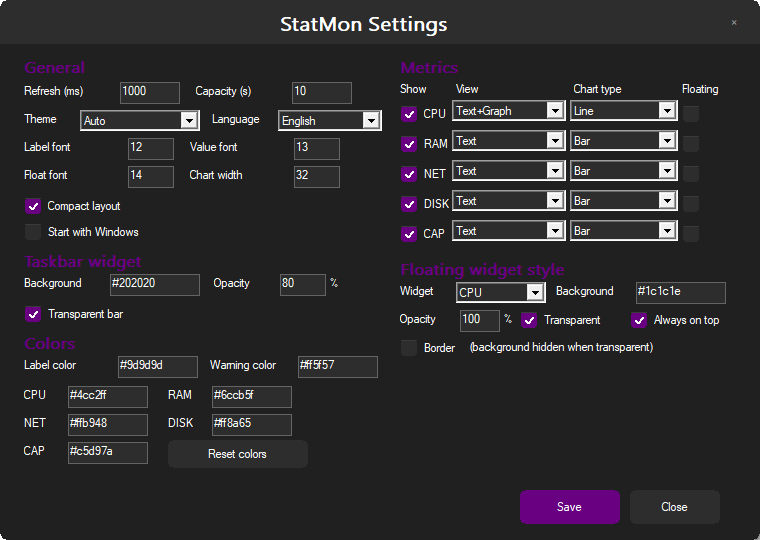
Beyond raw efficiency, StatMon delivers extensive customization options that blend naturally with modern desktop aesthetics:
- Taskbar Geometry Adaptation: Seamlessly overlays the primary taskbar (
Shell_TrayWnd), supporting bottom, top, left, and right orientations. On side taskbars, it switches to a vertical stack; in constrained space, it activates a compact layout, hiding charts and metrics gracefully to prevent overlap. - Flexible Graph Types: Each individual metric can be rendered as Text, Graph, or Text + Graph, with selectable chart styles including Bar, Line, Pie, and LED.
- Smooth Easing LED Indicators: Disk and Network tiles feature two-row LED meters (Read/Write and Down/Up) with smooth brightness transitions that ease into each new sample without harsh jumps or sawtooth flicker.
- Floating Desktop Widgets: Any metric can be detached into an independent, always-on-top desktop window. Each floating widget features customizable background color, opacity, borders, and persistent screen coordinates.
- Interactive Hover Tooltip: Hovering over any tile reveals a themed popover detailing exact memory allocations, transfer rates, and per-partition disk usage.
- 5 Built-in Languages: Fully localized in English, German, French, Spanish, and Turkish.
Technical Specifications (Data at a Glance)
| Property | Specification / Details |
|---|---|
| Programming Language | Rust (2021 Edition, MSVC Toolchain) |
| Graphics & UI Subsystem | Native Win32 GDI (Double-Buffered, 4× Supersampled) |
| Runtime / Webview | None (Zero external runtime dependencies) |
| Binary Size | ~408 KB (.exe, opt-level: “z”, LTO, stripped) |
| Memory Consumption (RAM) | ~21 MB Active Working Set |
| Sampling Frequency | Default 1000 ms (1 Hz, customizable) |
| Monitored Metrics | CPU, RAM, Network (↓/↑), Disk Busy % & Rates, 3 Drives Capacity |
| Chart Presentations | Text, Bar, Line, Pie, Easing LED Matrix |
| Supported Platforms | Windows 10 / Windows 11 (64-bit) |
| Configuration Path | %APPDATA%statmonconfig.json |
| License | Open Source (MIT License) |
Installation and Building from Source
StatMon requires no installer or background setup routine:
- Download the latest
statmon-vX.X.X-win64.zipfrom the official GitHub Releases repository. - Extract the archive into any folder of your choice and launch
statmon.exe. - Right-click the taskbar tile or tray icon to open Settings and tailor your layout and color palette.
To compile the project from source, ensure you have the standard Rust MSVC toolchain installed:
# Clone repository
git clone https://github.com/DigiLiner/statmon.git
cd statmon

# Build with release optimizations
cargo build --release

# Output binary located at: targetreleasestatmon.exe
Frequently Asked Questions (FAQ)
Why doesn’t StatMon include GPU or thermal sensor readings?
Accessing low-level GPU hardware telemetry, temperature diodes, and fan speeds requires signed kernel-mode (Ring 0) drivers. To safeguard system stability, eliminate security vulnerabilities, and preserve zero-overhead efficiency, StatMon intentionally operates within standard unprivileged user-mode Win32 APIs.
How should I handle the Windows SmartScreen warning on launch?
As a community-driven, free open-source utility, StatMon is not signed with costly commercial code-signing certificates. Windows SmartScreen may present a cautionary dialog on initial execution. Click “More info” and select “Run anyway”. Users can inspect the full source code on GitHub and compile their own binaries locally.
Does StatMon support multi-monitor taskbars?
StatMon targets the primary Windows taskbar (Shell_TrayWnd). However, using its Floating Widgets feature, you can detach any hardware metric into its own window and position it permanently across secondary or tertiary monitors.
References and Verified Documentation
- [1] Official GitHub Repository: DigiLiner / StatMon (Source Code and Releases)
- [2] Rust windows-sys Crate Documentation: Rust Crate windows-sys: Windows API Type Definitions
- [3] Microsoft Win32 Performance Data Helper: Microsoft Learn: Performance Data Helper (PDH) Architecture
- [4] Microsoft Win32 IP Helper API: Microsoft Learn: GetIfTable2 Function Documentation